
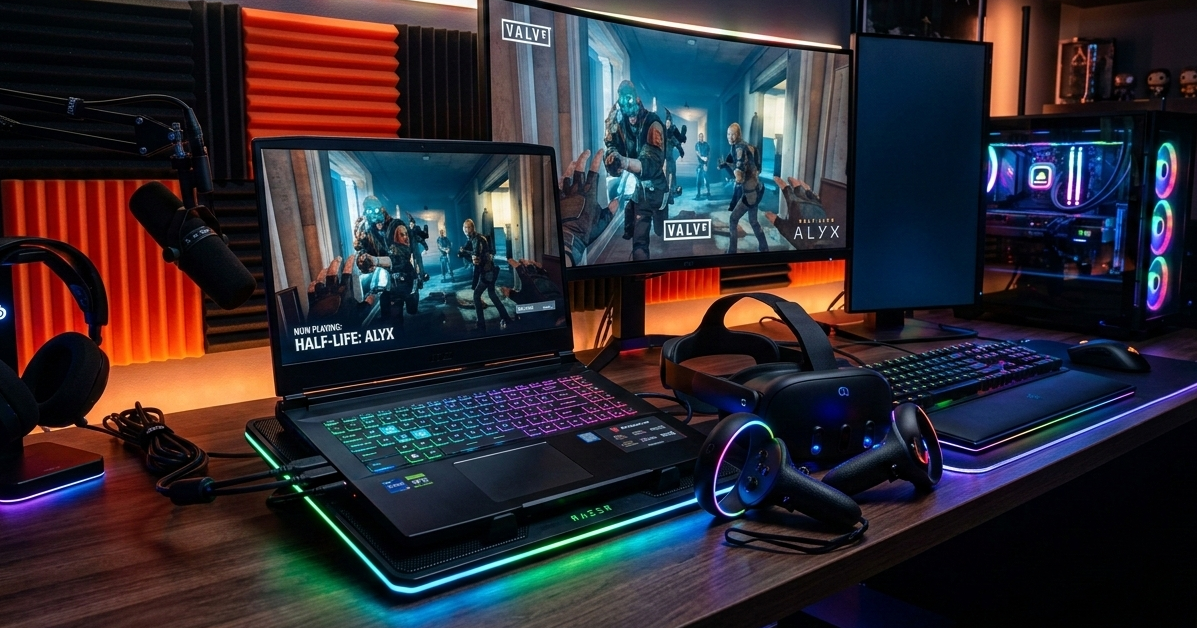
Virtual Reality (VR) gaming is one of the most demanding experiences a computer can handle. Unlike normal gaming, VR requires extremely smooth performance because even small lag or stuttering can break immersion and cause motion sickness.
After years of working with gaming laptops and optimizing them for VR setups, I’ve learned that many users struggle with performance not because their laptop is weak—but because it is not properly optimized.
If you’re wondering how to optimize gaming laptop for VR, this expert guide will walk you through every practical step I personally use to improve VR performance.
By the end of this article, you’ll know how to:
- Increase VR performance
- Reduce lag and stuttering
- Improve frame stability
- Make your laptop VR-ready
Let’s start with the fundamentals.
Understanding VR Performance Requirements
Before optimizing anything, it’s important to understand why VR demands so much power.
VR headsets typically require:
- High FPS (90 FPS or more)
- Low latency
- Stable GPU performance
- Fast storage access
Unlike traditional gaming, VR renders two images simultaneously (one for each eye). This doubles the graphical workload.
When a gaming laptop isn’t optimized correctly, it can cause:
- Frame drops
- Input lag
- VR motion sickness
- Poor immersion
The good news is that with proper optimization, even mid-range gaming laptops can run VR smoothly.
Check if Your Laptop Meets Minimum VR Specs
Before you begin optimization, confirm that your gaming laptop meets the minimum VR requirements.
Recommended VR Specs
Processor
Intel i5 / Ryzen 5 or better
Graphics Card
RTX 2060 / GTX 1660 Ti or better
RAM
16GB recommended
Storage
SSD required
Ports
USB-C / HDMI / DisplayPort (depending on headset)
If your laptop meets these requirements, optimization will make a huge difference.
Update Your GPU Drivers First
This is the first step I always recommend when optimizing a gaming laptop for VR.
Graphics drivers include performance improvements and VR optimizations that many users miss.
Steps to update GPU drivers
- Open GPU control software
- Check for updates
- Install the latest drivers
- Restart the laptop
New drivers often provide:
- Better VR compatibility
- Performance improvements
- Bug fixes for VR headsets
Skipping driver updates can easily cost 10–20% performance.
Optimize Windows for VR Gaming
Windows background services often consume CPU and RAM, reducing VR performance.
Disable unnecessary startup apps
Open:
Task Manager → Startup
Disable apps like:
- Launchers
- Auto updaters
- Background utilities
This frees resources for VR rendering.
Enable Game Mode
Windows Game Mode prioritizes gaming performance.
Steps:
Settings → Gaming → Game Mode → Enable
This helps reduce background interference while running VR applications.
Adjust Power Settings for Maximum Performance
Many gaming laptops throttle performance to save battery.
For VR gaming, you need maximum performance mode.
Change Power Mode
Control Panel → Power Options
Select:
High Performance
or
Ultimate Performance
This prevents the CPU and GPU from lowering speeds during gameplay.
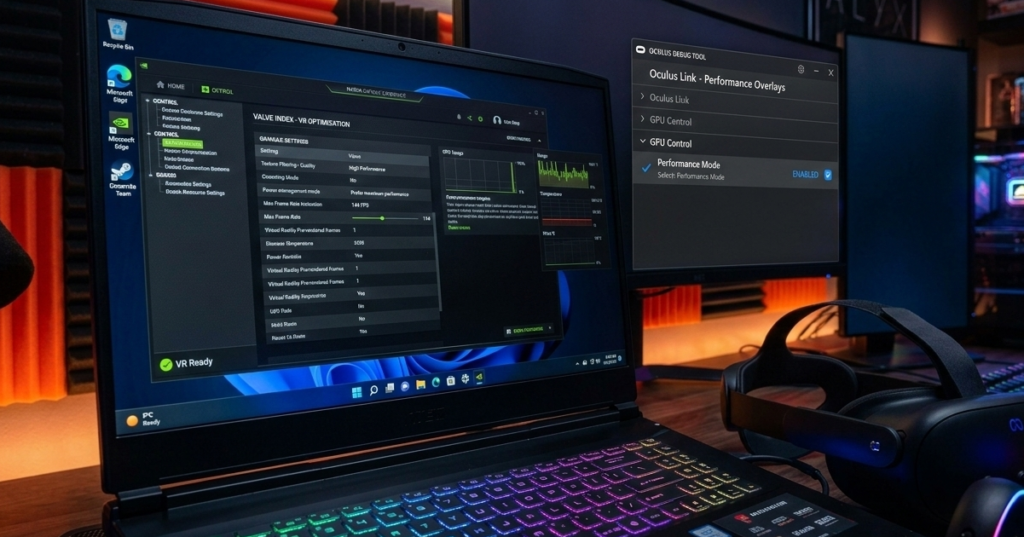
Optimize GPU Settings for VR
Fine-tuning GPU settings can dramatically improve VR stability.
Open your GPU control panel and adjust:
Key settings to modify
Power Management Mode
Set to Prefer Maximum Performance
Texture Filtering
Set to High Performance
Low Latency Mode
Enable
Vertical Sync
Disable
These settings reduce latency and improve frame consistency in VR games.
Upgrade or Optimize RAM Usage
VR applications are memory intensive.
Many gaming laptops ship with 8GB RAM, which is often insufficient for VR.
Recommended RAM
Minimum: 16GB
If upgrading RAM isn’t possible, you can optimize usage by:
- Closing browsers
- Ending background processes
- Avoiding streaming while playing VR
This ensures more memory is available for VR rendering.
Use SSD Storage for VR Games
Running VR games from HDD significantly slows loading times and causes stutters.
Why SSD matters
VR games load massive assets like:
- 3D environments
- textures
- motion data
SSD storage reduces delays and prevents micro-stutters.
If possible, install VR games on:
NVMe SSD
This provides the best experience.
Optimize VR Software Settings
Each VR platform includes performance settings.
Lowering certain settings can dramatically increase performance.
Recommended adjustments
Lower:
- Shadows
- Anti-aliasing
- Render resolution
- Reflection quality
Keep these settings moderate to maintain visual quality while improving FPS.
Control Laptop Temperature (Very Important)
Heat is one of the biggest enemies of VR performance on gaming laptops.
When a laptop overheats, the system automatically reduces CPU and GPU speed.
This is called thermal throttling.
Ways to reduce temperature
Use (how to optimize gaming laptop for VR)
- Cooling pad
- Elevated laptop stand
- Clean air vents
- External fans
Keeping temperatures lower can increase VR performance by 15–25%.
Close Background Applications Before VR Gaming
One common mistake I see among VR gamers is running too many background programs.
Before launching VR games, close:
- Chrome
- Discord overlays
- Streaming apps
- Update services
This ensures your GPU and CPU are fully dedicated to VR.
Optimize VR Headset Settings
Many VR headsets allow resolution scaling.
If your laptop struggles with performance, reduce:
- Render resolution
- Refresh rate (if supported)
Even a small reduction can greatly stabilize frame rates. (how to optimize gaming laptop for VR)
Use Wired Internet Instead of WiFi
For multiplayer VR games or cloud VR streaming, network stability matters.
WiFi often causes:
- Packet loss
- Latency spikes
Using Ethernet connection provides:
- Stable connection
- Lower latency
- Better VR experience
Update VR Software and Firmware
VR headsets frequently release updates that improve performance and compatibility.
Check for updates in your headset software.
Updates often include:
how to optimize gaming laptop for VR
- motion tracking improvements
- bug fixes
- performance optimizations
Advanced Optimization Tips (From Experience)
After optimizing dozens of gaming laptops for VR setups, here are a few expert tricks that make a big difference.
Disable unnecessary overlays
Overlays from apps like:
- game launchers
- screen recorders
- GPU monitoring tools
can reduce performance.
Disable them during VR gaming.
Use a cooling pad
Gaming laptops perform significantly better when airflow improves.
This simple accessory can reduce temperatures by 5–10°C.
Keep your system clean
Dust buildup blocks airflow and causes overheating.
Cleaning vents every few months helps maintain performance.
Common VR Performance Mistakes
Many users unknowingly harm VR performance.
Avoid these mistakes:
Running VR on battery power
Using outdated drivers
Overheating laptop
Installing VR games on HDD
Running too many background apps
Fixing these issues alone can greatly improve performance.
Final Thoughts
Learning how to optimize gaming laptop for VR can completely transform your VR experience.
Many gamers believe they need a new laptop, but in reality, proper optimization can unlock significant hidden performance.
By following the steps in this guide, you can (how to optimize gaming laptop for VR)
- Increase FPS
- Reduce VR lag
- Improve visual stability
- Enjoy smoother immersive gameplay
With the right configuration, even mid-range gaming laptops can deliver an impressive VR experience.
FAQ Section
How powerful should a gaming laptop be for VR?
A VR-ready gaming laptop should have at least a GTX 1660 Ti or RTX 2060 GPU, 16GB RAM, and SSD storage to run most VR games smoothly.
Can gaming laptops run VR smoothly?
Yes, modern gaming laptops can run VR smoothly if properly optimized with updated drivers, high-performance power settings, and adequate cooling.
How much RAM is needed for VR gaming?
For the best VR experience, 16GB RAM is recommended, although some basic VR games may run on 8GB.
Does SSD improve VR performance?
Yes. Installing VR games on an SSD or NVMe drive improves loading speed and reduces stuttering during gameplay.
Why does VR lag on gaming laptops?
VR lag usually happens because of (how to optimize gaming laptop for VR)
- overheating
- outdated drivers
- low RAM
- background applications
- incorrect power settings
Optimizing these factors significantly improves VR performance.