
How to Optimize Gaming Laptop for 4K (Complete Expert Guide)
4K gaming on a laptop sounds exciting, but it can also be extremely demanding. Many gamers buy powerful gaming laptops only to discover that running games at 4K resolution (3840 × 2160) causes lower frame rates, overheating, and performance drops.
After working with gaming laptops and optimizing them for high-resolution gaming for many years, I’ve seen the same problem repeatedly: most gaming laptops are capable of 4K gaming, but they are not properly optimized.
In this expert guide, I will show you how to optimize gaming laptop for 4K gaming using real performance techniques I’ve personally used to improve frame rates and stability.
By the end of this article, you will learn how to:
- Improve FPS in 4K gaming
- Reduce lag and stuttering
- Optimize GPU and CPU performance
- Prevent thermal throttling
- Achieve smooth 4K gameplay on a laptop
Let’s start with the basics.
Understanding the Demands of 4K Gaming
Before optimizing your gaming laptop, you need to understand why 4K gaming is so demanding.
4K resolution renders four times more pixels than 1080p. That means your GPU must process significantly more data every frame.
Pixel comparison
1080p = about 2 million pixels
1440p = about 3.7 million pixels
4K = about 8.3 million pixels
Because of this, 4K gaming puts massive pressure on:
- GPU processing power
- VRAM usage
- system memory
- cooling system
Without proper optimization, even a high-end gaming laptop may struggle.
Check If Your Laptop Is Capable of 4K Gaming
Before trying to optimize anything, verify that your laptop hardware is strong enough.
Recommended specs for 4K gaming
Processor
Intel Core i7 / Ryzen 7 or better
Graphics Card
RTX 3060 or higher
RAM
16GB minimum (32GB ideal)
Storage
NVMe SSD recommended
Display Output
HDMI 2.0 / DisplayPort for external 4K monitors
If your laptop meets these requirements, optimization can dramatically improve performance.
Update Your Graphics Drivers First
One of the most overlooked steps when optimizing gaming laptops for 4K gaming is driver updates.
GPU manufacturers regularly release updates that improve performance for modern games.
Why driver updates matter
New drivers often include:
- game optimization profiles
- improved GPU efficiency
- bug fixes
- stability improvements
In my experience, updating drivers alone can increase gaming performance by 10–15% in some titles.
Always download the latest drivers directly from the GPU manufacturer.
Enable Maximum Performance Power Mode
Many gaming laptops ship with balanced power settings to save battery.
However, balanced mode limits CPU and GPU performance and also know how to optimize gaming laptop for 4K.
Change your power plan
Open:
Control Panel → Power Options
Select:
High Performance
or
Ultimate Performance
This ensures the processor and graphics card operate at their full potential during gaming.
Optimize GPU Settings for 4K Gaming
Fine-tuning GPU settings is one of the most effective ways to improve 4K gaming performance.
After optimizing dozens of gaming systems, these are the settings I consistently adjust.
Recommended GPU settings
Power Management Mode
Set to Prefer Maximum Performance
Texture Filtering Quality
Set to High Performance
Low Latency Mode
Enable
Vertical Sync (V-Sync)
Disable for higher FPS
Shader Cache
Enable
These changes prioritize performance instead of visual processing overhead.
Adjust In-Game Graphics Settings
Many gamers attempt to run every setting at Ultra when playing at 4K. This often causes frame rate drops.
Instead, smart optimization focuses on high-impact settings.
Settings that heavily affect performance
Lower these first:
- Shadow quality
- Ambient occlusion
- Reflection quality
- volumetric lighting
These settings consume large amounts of GPU resources but often provide minimal visual improvements.
Settings you can keep high
- texture quality
- anisotropic filtering
These provide better visuals with minimal performance loss.
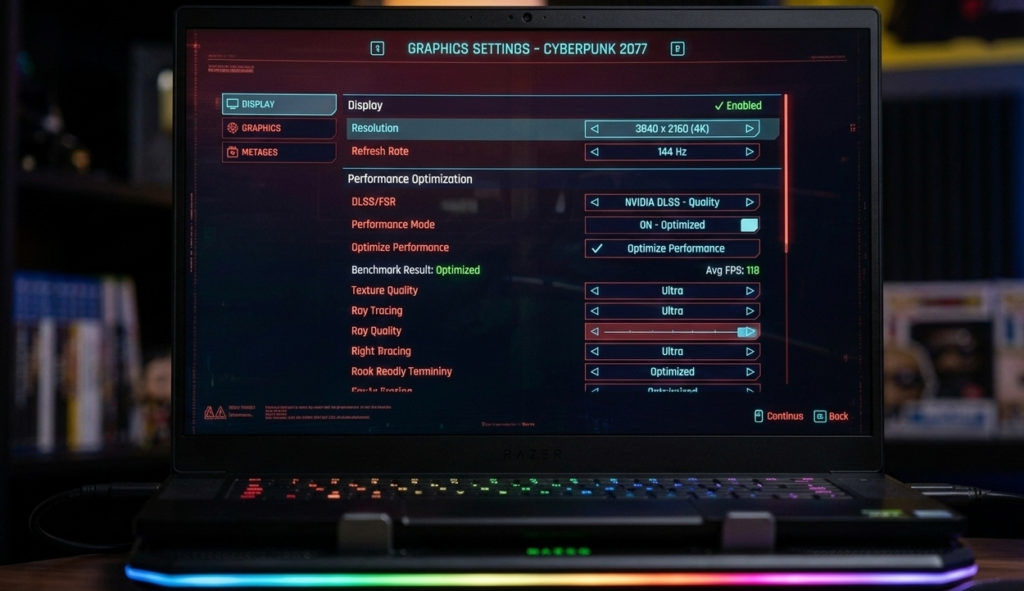
Use DLSS or Upscaling Technology
Modern GPUs include technologies designed to improve performance at high resolutions.
One of the most powerful tools for how to optimize gaming laptop for 4K gaming is AI upscaling.
Benefits of DLSS
DLSS renders the game at a lower resolution and then uses AI to upscale it to 4K.
This results in:
- significantly higher FPS
- minimal visual difference
- improved performance stability
From my experience how to optimize gaming laptop for 4K gaming, enabling DLSS can improve performance by 30–60% in supported games.
Optimize Laptop Cooling
Heat is one of the biggest performance killers in gaming laptops.
When temperatures rise too high, the system automatically reduces CPU and GPU speeds. This is known as thermal throttling.
Signs of overheating
- sudden FPS drops
- loud fan noise
- hot keyboard surface
Cooling optimization tips
Use a cooling pad
Raise the rear of the laptop slightly
Clean dust from air vents
Avoid gaming on soft surfaces like beds
In my experience, improving cooling alone can increase performance by 10–20%.
Close Background Applications
Many users forget that background apps consume CPU and RAM.
Before starting 4K gaming sessions, close:
- browsers
- streaming software
- update services
- unnecessary launchers
This frees valuable system resources for gaming.
Upgrade RAM for Better Performance
Many gaming laptops still ship with 8GB RAM, which is insufficient for modern games.
Recommended RAM for 4K gaming
Minimum: 16GB
Ideal: 32GB
More memory allows the system to handle large textures and complex game environments more efficiently.
Install Games on NVMe SSD
Storage speed can also affect gaming performance.
While SSDs mainly impact loading times, slower drives can sometimes cause texture streaming stutters in open-world games.
Installing games on an NVMe SSD ensures faster asset loading and smoother gameplay.
Optimize Windows for Gaming
Windows includes features that help improve gaming performance.
Enable Game Mode
Open:
Settings → Gaming → Game Mode
Turn it ON
Game Mode prioritizes CPU and GPU resources for games and reduces background activity.
Reduce Display Scaling Issues
If you are playing on an external 4K monitor, incorrect scaling settings may affect performance.
Ensure your system is running at the correct native resolution and refresh rate.
Steps
Settings → Display → Advanced display settings
Confirm that the monitor is running at:
3840 × 2160 resolution
Advanced Optimization Techniques
After years of optimizing gaming laptops for high-resolution gaming, these advanced techniques consistently deliver results.
Disable unnecessary overlays
Overlays from software like:
- recording apps
- system monitoring tools
- game launchers
can reduce performance slightly.
Disabling them improves system efficiency.
Keep your system clean
Dust accumulation blocks airflow and increases temperatures.
Cleaning your laptop vents every few months helps maintain stable performance.
Update BIOS and firmware
Laptop manufacturers occasionally release firmware updates that improve performance and stability.
Checking for updates can sometimes fix unexpected performance issues.
Common Mistakes When Gaming in 4K
Through years of working with gaming laptops, I’ve seen several common mistakes.
Avoid these issues:
Running games on battery power
Ignoring thermal management
Using outdated GPU drivers
Running too many background apps
Installing games on slow storage
Fixing these problems alone can dramatically improve performance.
Final Thoughts
Learning how to optimize gaming laptop for 4K gaming can completely transform your gaming experience.
Many gamers believe they need extremely expensive hardware for 4K gaming, but proper optimization can unlock hidden performance in your existing laptop.
By applying the techniques in this guide, you can:
- increase frame rates
- reduce lag and stuttering
- maintain stable performance
- enjoy smooth 4K gameplay
With the right setup and optimization strategy, even mid-range gaming laptops can deliver an impressive 4K gaming experience.
FAQ Section
Can gaming laptops handle 4K gaming?
Yes, many modern gaming laptops can handle 4K gaming, especially those with powerful GPUs like RTX 3060 or higher.
How much RAM is needed for 4K gaming?
At least 16GB RAM is recommended, while 32GB provides the best experience for demanding games.
Does SSD improve 4K gaming performance?
Yes. Installing games on an SSD or NVMe drive reduces loading times and prevents texture streaming stutters.
Why does 4K gaming reduce FPS?
4K resolution requires rendering over 8 million pixels per frame, which places heavy demands on the GPU.
What is the best way to how to optimize gaming laptop for 4K?
The most effective methods include optimizing GPU settings, enabling DLSS, improving cooling, and closing background applications.