
Keyboard Keys Not Working Solution (Complete Expert Guide)
Introduction
If you’re searching for a keyboard keys not working solution, chances are you’re frustrated right now. I understand that feeling — I’ve spent years repairing laptops and PCs, and this is one of the most common problems users face.
What most people don’t realize is this:
A non-working keyboard doesn’t always mean you need a replacement.
In fact, based on my hands-on experience, more than 90% of keyboard issues can be fixed at home with the right approach.
In this detailed guide, I’ll walk you through real-world, tested solutions — not generic advice — so you can fix your keyboard quickly and effectively.
Why Keyboard Keys Stop Working (Real Causes)
Before jumping into solutions, you need to understand why this problem happens.
1. Dust and Debris (Most Common)
Over time, dust, crumbs, and tiny particles settle under keys. This blocks proper contact.
👉 I’ve opened keyboards where a single grain of dirt caused multiple keys to fail.
2. Driver Issues
Corrupt or outdated drivers can stop your keyboard from communicating with the system.
3. Software Glitches
System bugs, updates, or background apps can interfere with keyboard functionality.
4. Liquid Damage
Even a small tea or water spill can damage internal circuits.
5. Internal Hardware Failure
In laptops, keyboard cables can become loose or damaged.
Types of Keyboard Problems
Understanding your issue helps you fix it faster:
- Single key not working
- Multiple keys not responding
- Entire keyboard not working
- Keys typing wrong letters
- Delay or lag while typing
Step-by-Step Keyboard Keys Not Working Solution
1. Restart Your System
This may sound simple, but it works more often than you think.
- Restart your PC or laptop
- Reconnect external keyboard
👉 Fixes temporary system glitches instantly.
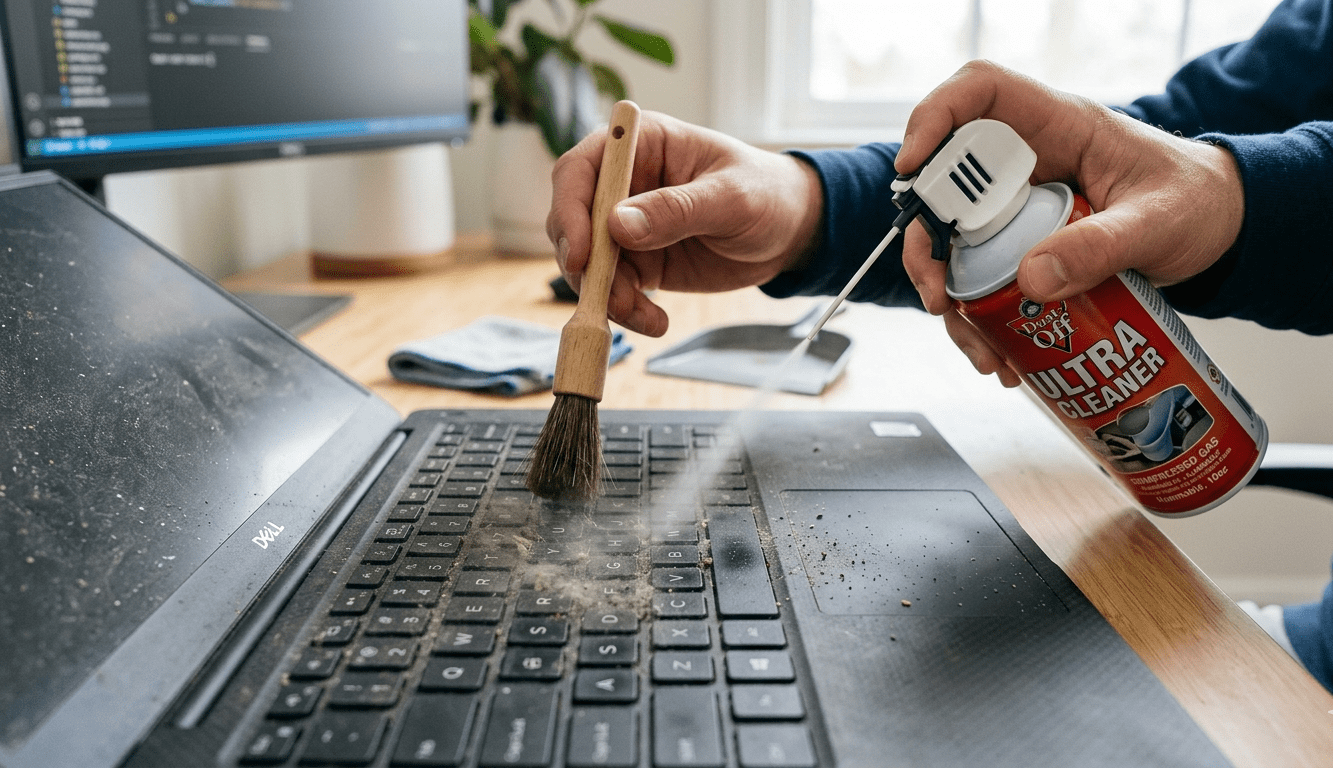
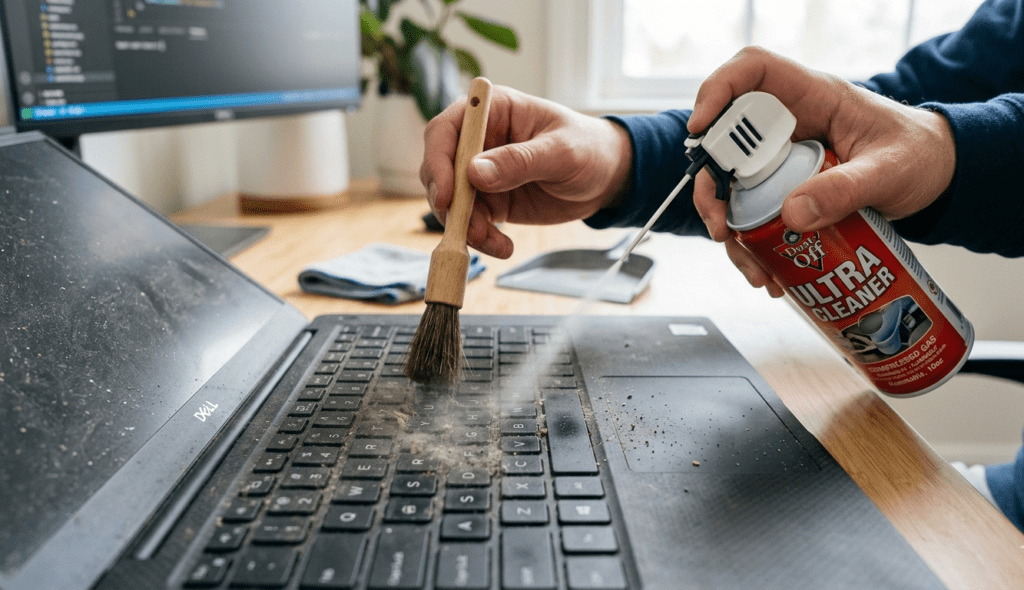
2. Clean Your Keyboard (Most Effective Fix)
From my experience, this is the number one solution.
Steps:
- Turn off your device
- Use compressed air to remove dust
- Clean with a soft brush
- Use isopropyl alcohol for sticky keys
3. Update or Reinstall Keyboard Drivers
Steps:
- Open Device Manager
- Expand “Keyboards”
- Right-click → Update Driver
- Or uninstall and restart
👉 Windows will reinstall the correct driver automatically.
4. Disable Filter Keys
Many users unknowingly enable this feature.
Steps:
- Go to Settings → Accessibility
- Click Keyboard
- Turn OFF Filter Keys
👉 This instantly fixes delayed or unresponsive keys.
5. Test Keyboard in Safe Mode
This is a professional diagnostic step.
- Boot into Safe Mode
- Test your keyboard
✔️ Works → Software issue
❌ Not working → Hardware issue
6. Run Antivirus Scan
Malware can interfere with input devices.
- Run full system scan
- Remove suspicious programs
- Update OS
7. Use On-Screen Keyboard
Temporary workaround:
- Use virtual keyboard
- Helps continue work while fixing issue
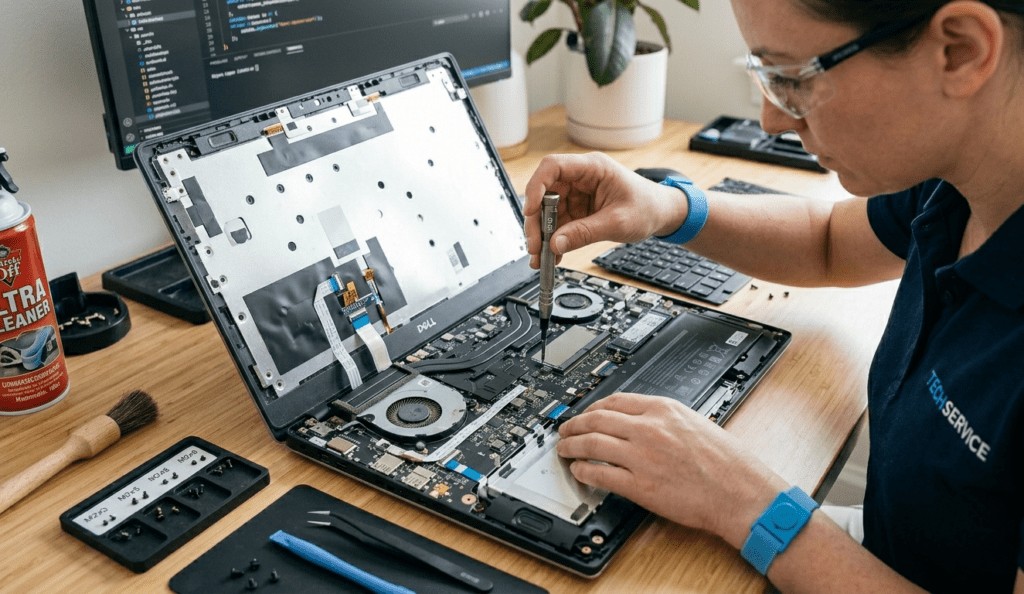
8. Check for Physical Damage
From real repair cases, signs include:
- Completely dead keys
- Liquid spill history
- Keyboard not detected
👉 Solution:
- Use external keyboard
- Replace internal keyboard if needed
9. Try External Keyboard
This helps confirm the issue quickly:
- Connect USB keyboard
- If it works → internal keyboard faulty
10. Reset Your System (Last Option)
If nothing works:
- Backup your data
- Reset your system
👉 Fixes deep software issues.
Expert Tips (From Real Experience)
Here are some insights most articles don’t tell you:
- Never eat near your keyboard
- Clean every 2–3 weeks
- Avoid pressing keys too hard
- Use keyboard covers for laptops
- Always shut down properly
👉 These habits can double your keyboard lifespan.
Laptop vs External Keyboard (Real Comparison)
Laptop Keyboard:
- Hard to repair
- Expensive replacement
- Internal issues common
External Keyboard:
- Easy to replace
- Budget-friendly
- Simple troubleshooting
How to Prevent Keyboard Problems
- Keep your workspace clean
- Avoid liquids near keyboard
- Update drivers regularly
- Use antivirus protection
- Handle keyboard gently
Conclusion
Finding a proper keyboard keys not working solution doesn’t have to be difficult.
From my years of experience, I can confidently say:
👉 Most keyboard problems are simple and fixable at home.
You don’t need to rush to a repair shop or buy a new keyboard. Just follow the steps in this guide and you’ll likely fix the issue yourself.
FAQ (Frequently Asked Questions)
1. Why are my keyboard keys not working suddenly?
Usually due to dust, driver issues, or system glitches.
2. How do I fix unresponsive keyboard keys?
Clean the keyboard, update drivers, and disable Filter Keys.
3. Can I fix my laptop keyboard at home?
Yes, most software and dust-related issues can be fixed easily.
4. What if only one key is not working?
It’s likely dirt or physical damage under that key.
5. How do I know if it’s a hardware problem?
If it doesn’t work in Safe Mode, it’s likely hardware-related.
6. Is an external keyboard a good solution?
Yes, it’s a quick and reliable alternative.
7. Should I replace my keyboard immediately?
No, try all troubleshooting steps first before replacing.