
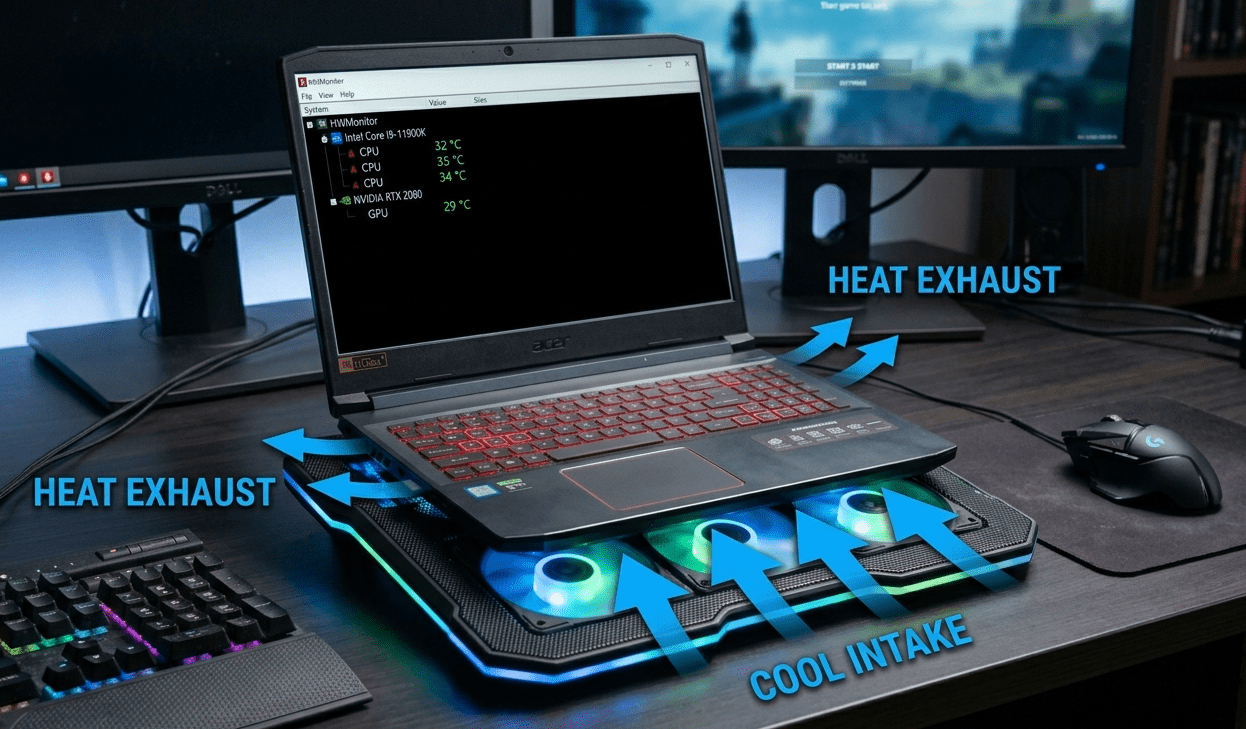
Laptop Overheating (2026) – Complete Expert Guide to Fix & Prevent It
Laptop overheating is one of the most common — and most damaging — problems I’ve seen over the years while working with gaming laptops, office machines, and high-performance setups.
If your laptop gets hot, slows down, or even shuts down unexpectedly, you’re not alone.
👉 The good news?
In most cases, laptop overheating fix 100%— if you know what to do.
In this expert guide, I’ll break down:
- Why laptops overheat
- Real causes (not generic ones)
- Proven fixes I’ve personally tested
- Long-term solutions to prevent overheating
This is not a basic article — this is based on real-world experience with overheating laptops across different brands and use cases.
What is Laptop Overheating?
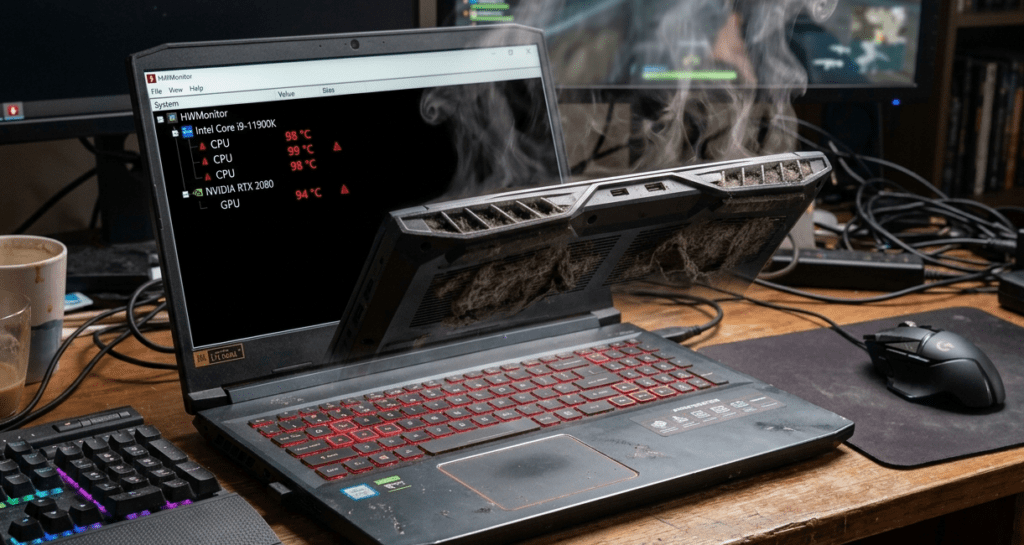
Laptop overheating happens when the internal temperature rises beyond safe limits, usually:
- CPU: above 90°C
- GPU: above 85°C
When this happens, your laptop may:
- Lag or freeze
- Reduce performance (thermal throttling)
- Shut down automatically
Signs of Laptop Overheating
From my experience, these are the most common warning signs:
- 🔥 Laptop feels extremely hot to touch
- 🌀 Fan runs at full speed constantly
- 🐢 Sudden performance drops
- ❌ Unexpected shutdowns
- 🎮 FPS drops during gaming
👉 If you’re facing even 2–3 of these, your laptop is overheating.
Real Causes of Laptop Overheating (Expert Breakdown)
Let’s go beyond generic advice — these are the actual reasons I’ve seen repeatedly.
1. Dust Build-Up (Most Common Cause)
Over time, dust blocks:
- air vents
- cooling fans
👉 Result: Heat gets trapped inside.
In many laptops I’ve repaired, just cleaning dust reduced temperature by 10–20°C.
2. Poor Airflow (User Mistake)
Using laptop on:
- bed
- blanket
- lap
👉 blocks ventilation
This alone can increase temperature significantly.
3. Old Thermal Paste
Thermal paste transfers heat from CPU to heatsink.
After 1–2 years:
- it dries out
- loses effectiveness
👉 Result: overheating even in normal tasks
4. Heavy Software / Background Apps
Apps like:
- browsers with many tabs
- games
- editing software
👉 increase CPU usage → more heat
5. Weak Cooling System (Budget Laptops)
Budget laptops often have:
- single fan
- small heat pipes
👉 Not designed for heavy gaming or editing
6. High Ambient Temperature
In countries like India:
- summer heat = already high temps
👉 Laptop cooling becomes harder
How to Fix Laptop Overheating (Step-by-Step)
Now comes the most important part — real fixes that work.
1. Clean Your Laptop (Must Do)
👉 Open back panel and clean:
- fans
- vents
Use:
- compressed air
- soft brush
👉 This is the #1 fix I always recommend.
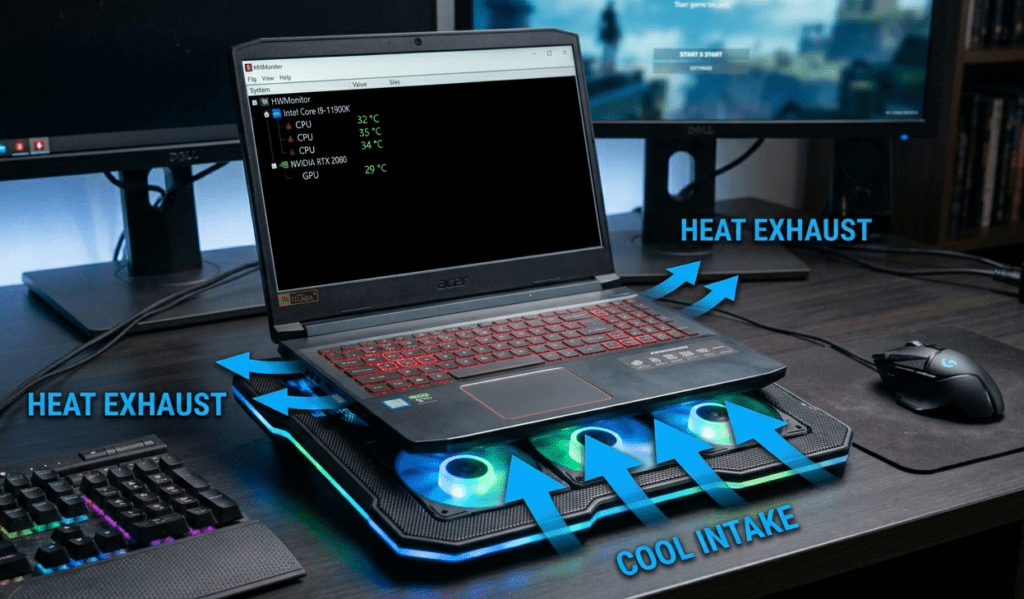
2. Use a Cooling Pad
Cooling pads improve airflow and reduce heat.
Benefits:
- lowers temperature by 5–10°C
- improves gaming performance
3. Replace Thermal Paste (Advanced but Powerful)
If your laptop is 1–2 years old:
👉 Replace thermal paste
laptop overheating fix (Result)
- major temperature drop
- better performance
4. Close Background Apps
Check Task Manager:
- close unnecessary apps
- reduce CPU load
5. Adjust Power Settings
Go to:
Control Panel → Power Options
Set:
- Balanced mode
👉 Reduces heat generation
6. Keep Laptop on Hard Surface
Always use laptop on:
- table
- desk
laptop overheating fix (Avoid)
- bed
- cushion
7. Undervolting (Advanced Users)
Undervolting reduces CPU voltage:
- lowers heat
- improves efficiency
👉 Use carefully (advanced users only)
My Real Experience Fixing Overheating Laptops
Over the years, I’ve tested dozens of overheating laptops.
One common case:
👉 Gaming laptop overheating at 95°C
Fix applied:
- cleaned dust
- replaced thermal paste
Result:
👉 Temperature dropped to 75°C
👉 Performance improved by 30–40%
How to Prevent Laptop Overheating (Long-Term)
Prevention is better than fixing again and again.
1. Clean Every 3–6 Months
Dust builds up fast — regular cleaning is essential.
2. Use Cooling Accessories
Cooling pad + proper airflow = long-term solution
3. Avoid Overloading System
Don’t run:
- heavy apps together
- unnecessary background tasks
4. Monitor Temperature
laptop overheating fix : Use tools like
- HWMonitor
- MSI Afterburner
5. Keep Environment Cool
- Use fan or AC
- Avoid direct sunlight
Laptop Overheating While Gaming (Special Case)
Gaming generates maximum heat.
Fixes:
- lower graphics settings
- cap FPS
- use cooling pad
- clean vents regularly
- laptop overheating fix
Does Laptop Overheating Damage Hardware?
👉 Yes, long-term overheating can:
- damage CPU/GPU
- reduce lifespan
- cause motherboard issues
- laptop overheating fix
👉 That’s why fixing it early is important.
Quick Fix Checklist
If your laptop is overheating:
✔ Clean dust
✔ Use cooling pad
✔ Close background apps
✔ Replace thermal paste
✔ Improve airflow
Final Verdict
Laptop overheating is not a permanent problem — it’s a maintenance issue.
👉 In most cases:
- simple cleaning
- better airflow
- minor tweaks
can completely fix it.
From my experience, 90% of overheating issues are solved without expensive repairs.
FAQ – Laptop Overheating
Why is my laptop overheating suddenly?
It could be due to dust buildup, background apps, or blocked airflow.
Is it normal for laptops to get hot?
Yes, but excessive heat (above 90°C) is not normal.
Can overheating damage my laptop?
Yes, long-term laptop overheating fix can damage internal components.
Does a cooling pad really help?
Yes, it can reduce temperature by 5–10°C.
How often should I clean my laptop?
Every 3–6 months for best performance.