
Laptop Black Dots on Screen – Causes, Diagnosis & Real Fix Guide (2026)
If you’re noticing laptop black dots on screen, don’t panic — but don’t ignore it either.
In my years of working with laptop displays, repairing panels, replacing LCD assemblies, and diagnosing screen defects across brands like HP, Dell, Lenovo, and ASUS, I’ve seen this issue hundreds of times.
The important part?
Not all black dots mean the same problem.
Some are harmless dead pixels.
Some indicate pressure damage.
Some signal panel failure.
And in rare cases, it’s actually a GPU issue.
In this complete guide, I’ll break down:
- What causes laptop black dots on screen
- How to identify the exact type of defect
- When it’s fixable
- When screen replacement is required
- Cost estimates (USA)
- Preventive measures
- Real technician-level insights
Let’s diagnose it properly.
What Are Laptop Black Dots on Screen?
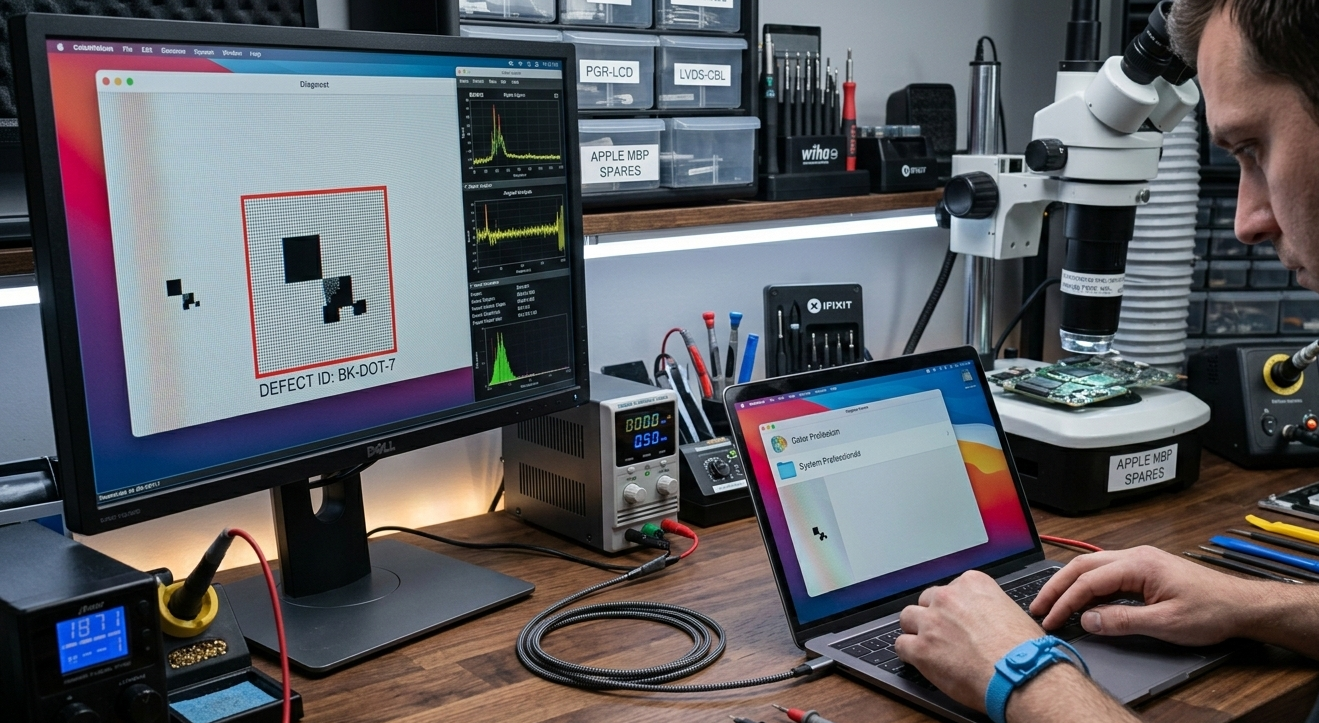
Laptop black dots on screen usually appear as:
- Tiny black pinpoints
- Clustered dark spots
- Circular shadow-like patches
- Growing black ink-like areas
They may:
- Stay in one fixed position
- Appear only on certain backgrounds
- Spread slowly over time
Understanding the pattern is critical.
Main Causes of Laptop Black Dots on Screen
After years of display diagnostics, these are the most common causes:
- Dead Pixels
- Stuck Pixels
- Pressure Damage
- LCD Bleeding
- Dirt Under Screen Layer
- GPU or Cable Issue
- Manufacturing Defect
Let’s break each down properly.
1️⃣ Dead Pixels (Most Common Cause)
A dead pixel is a pixel that no longer lights up.
Symptoms:
- Tiny black dot
- Does not change color
- Always stays black
Dead pixels are permanent.
They occur due to:
- Manufacturing defects
- Electrical failure in transistor
- Aging panel
In budget LCD panels, this is more common.
Important: 1–2 dead pixels are often considered “acceptable” by manufacturers.
2️⃣ Stuck Pixels (Fixable Sometimes)
A stuck pixel isn’t fully dead. It’s stuck on one color.
Sometimes appears black on certain backgrounds.
Difference:
- Dead pixel = fully black always
- Stuck pixel = color distortion depending on background
Fix possibility:
- Pixel massage technique
- Pixel fixing software
- Rapid color cycling
Success rate: 20–40%
3️⃣ Pressure Damage (Very Serious)
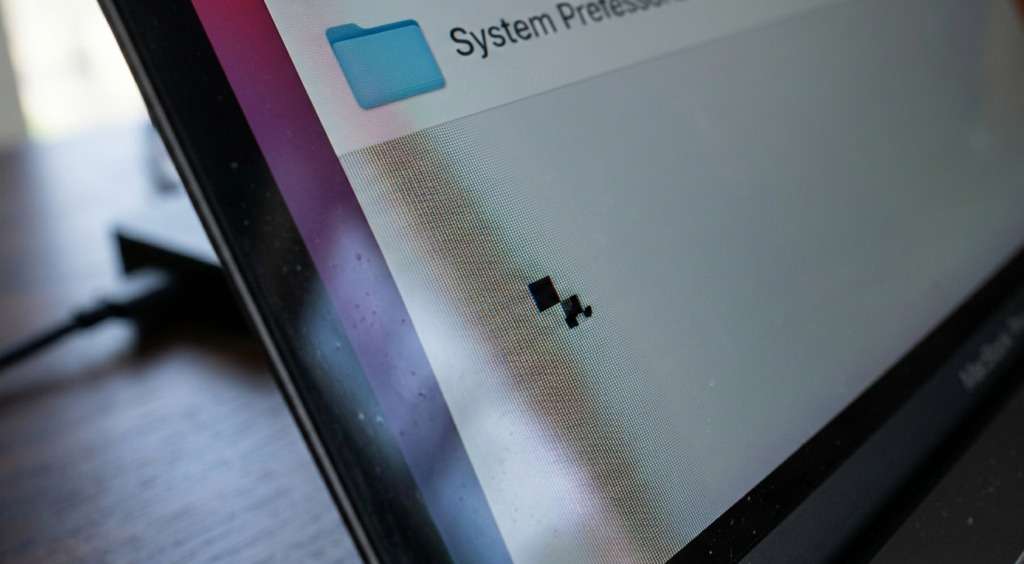
If black dots look like:
- Ink spreading
- Dark circular patch
- Spiderweb pattern
That’s pressure damage.
Common reasons:
- Closing laptop with object inside
- Sitting on laptop
- Excessive screen flex
- Backpack compression
In this case:
Panel replacement is required.
It cannot be repaired.
4️⃣ LCD Bleeding or Liquid Crystal Leak
This looks like:
- Dark cloudy areas
- Expanding black patches
- Irregular shapes
Over time, it spreads.
This happens when:
- Internal LCD layer cracks
- Liquid crystal leaks
Repair solution: Full display replacement.
5️⃣ Dirt or Debris Under Screen Protector
Rare but possible.
If dot:
- Slightly moves
- Only visible at certain angles
- Looks dusty
It may be debris under protective layer.
This is uncommon in factory-sealed laptops.
6️⃣ GPU or Display Cable Issue
Sometimes what looks like laptop black dots on screen may actually be:
- Graphics artifact
- Faulty ribbon cable
- GPU driver corruption
Test:
Connect laptop to external monitor.
If dots disappear:
- Problem is LCD panel.
If dots appear on external monitor:
- GPU issue.
How to Diagnose Laptop Black Dots Properly
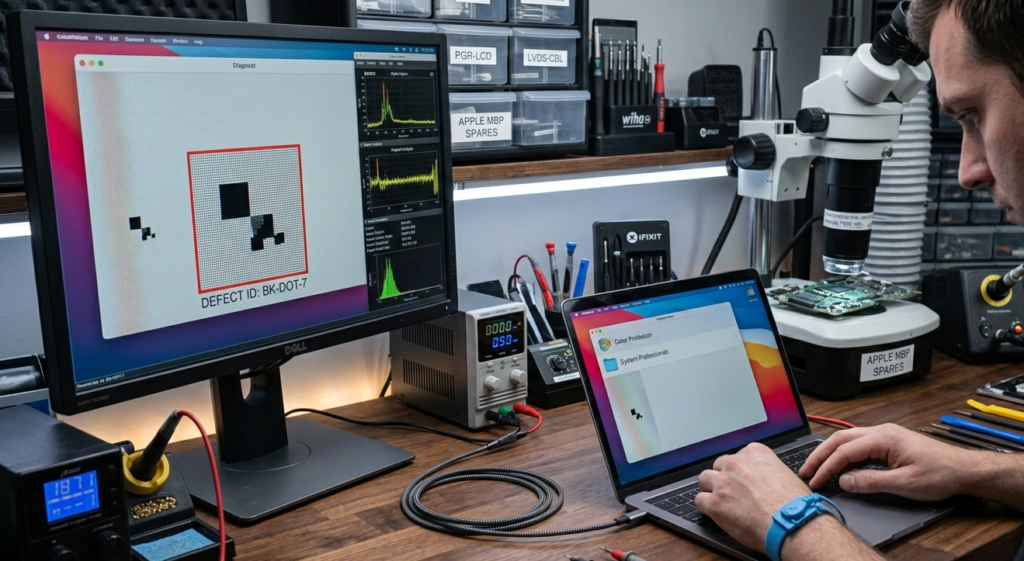
Follow this professional checklist:
Step 1: Check on White Background
Open pure white image fullscreen.
Observe:
- Size
- Shape
- Fixed or spreading
Step 2: Check on Red, Green, Blue Screens
Use color test website.
If dot changes behavior:
- Stuck pixel likely
If remains black:
- Dead pixel
Step 3: External Monitor Test
Connect HDMI monitor.
Result:
- If issue gone → screen issue
- If still visible → GPU issue
Step 4: Gentle Pressure Test
Lightly press near area.
If black area spreads:
- Liquid crystal damage
Be careful — don’t worsen it.
Can Laptop Black Dots Be Fixed?
Depends on type.
| Issue Type | Fixable? | Solution |
|---|---|---|
| Dead Pixel | ❌ No | Replace panel |
| Stuck Pixel | ⚠ Sometimes | Pixel fix software |
| Pressure Damage | ❌ No | Replace screen |
| GPU Issue | ✅ Yes | Driver / hardware fix |
| Cable Issue | ✅ Yes | Re-seat cable |
Screen Replacement Cost in USA (2026)
Approximate pricing:
Budget 14” LCD:
$60–$120 part
$50–$100 labor
Premium IPS display:
$120–$250 part
$80–$150 labor
MacBook / high-end:
$300–$600+
DIY possible if experienced.
Should You Replace Screen or Buy New Laptop?
Consider:
- Laptop age
- Repair cost
- Current market value
If repair cost > 50% of laptop value
→ Consider replacement.
Prevention Tips (From Real Repair Experience)
After repairing hundreds of panels, I always advise:
✔ Never close laptop with pen inside
✔ Use padded sleeve
✔ Avoid heavy pressure in backpack
✔ Don’t press screen while cleaning
✔ Use microfiber cloth only
✔ Keep away from extreme heat
When to Worry Immediately
If:
- Black dots spreading daily
- Screen flickering
- Vertical lines appearing
- Bright spots turning dark
That indicates panel failure progressing.
Is Laptop Black Dots Covered Under Warranty?
Usually:
- 1–2 dead pixels → not covered
- Cluster of pixels → may qualify
- Physical damage → not covered
Check manufacturer pixel policy.
Does This Affect Performance?
No.
It only affects display quality.
System performance remains same.
Unless:
It’s GPU related.
Frequently Asked Questions (FAQ)
1. What causes laptop black dots on screen?
Mostly dead pixels, pressure damage, or LCD failure.
2. Can dead pixels spread?
No. Dead pixels stay fixed. Pressure damage spreads.
3. Can software fix black dots?
Only stuck pixels sometimes. Dead pixels cannot be fixed.
4. Are black dots dangerous?
Not dangerous, but may indicate panel damage.
5. Is screen replacement worth it?
If laptop is under 3–4 years old, usually yes.
6. Can overheating cause black dots?
Rarely directly. But prolonged heat can damage display components.
7. How do I test for dead pixels?
Use full-screen red, green, blue, and white color tests.
Final Expert Verdict
If you see laptop black dots on screen, don’t assume worst immediately.
Diagnose properly:
- Tiny fixed dot → dead pixel
- Spreading dark patch → pressure damage
- Appears on external monitor → GPU issue
From years of hands-on repair experience, I can confidently say:
Most cases require display replacement,
but early diagnosis can save unnecessary expense.